Terrain: Difference between revisions
Jump to navigation
Jump to search
No edit summary |
|||
| Line 1: | Line 1: | ||
{{learned|what land is|what the relationship is between land and terrain in the Tygron Engine|which types of land type are present in the Tygron Engine|how to edit the land of a selected area}} | {{learned|what land is|what the relationship is between land and terrain in the Tygron Engine|which types of land type are present in the Tygron Engine|how to edit the land of a selected area}} | ||
==What is | ==What is terrain?== | ||
Terrain in the tygron engine, describes the surface and sub-surface (underground) and elevation of your project. Terrain excludes everything which is build-up on the terrain, which is described in buildings. Terrain can be editted via GEO DATA -> Terrain. | |||
==How does land type relate to the Tygron Engine?== | ==How does land type relate to the Tygron Engine?== | ||
Revision as of 08:49, 10 August 2018
What is terrain?
Terrain in the tygron engine, describes the surface and sub-surface (underground) and elevation of your project. Terrain excludes everything which is build-up on the terrain, which is described in buildings. Terrain can be editted via GEO DATA -> Terrain.
How does land type relate to the Tygron Engine?
- Land type in the Tygron Engine describes what types of surface a given area is, for example grassland, concrete, or water. Different land types have different effects. If the area is designated as grass land, it has a small positive effect on the livability and heat stress indicators. These indicators will be negatively affected if the land type is set as concrete. Open water drastically improves the available water storage.
Surface
- In the Tygron Engine there are different land types available. Each land type has different predefined attributes that affect indicators such as green and livability.
The following land types are available:
Grassland
- This is the default land type for land in the Tygron Engine. If an empty world is generated, all land will have this land type.
-
 Grass land
 -
Grass land type values

Drainage water (Boezem water)
- This land type is visualized as open water. It has a drainage function and underground drainage structures can connect to this terrain.
-
 Drainage water
 -
Drainage water land type values

Polder water
- This land type is open water that is available in polders, and that can be used for shipping.
-
 Polder water
 -
Polder water land type values

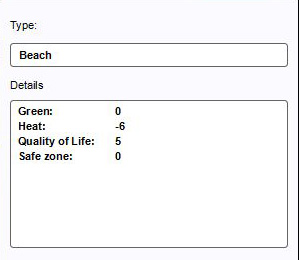
Beach
- This land type can be found where the land mass borders on large bodies of water such as open sea or large lakes.
-
Beach
-
 Beach land type values

Breakwater
- Breakwater is land type designated to protect the actual coast line from waves, floods and tidal erosion.
-
Breakwater
-
Breakwater land type values
Dikes
- Dike is a land type that usually lays between water and constructions, or other areas which need to be protected. Dikes are constructed phenomenon, offering protection from floods and high tides.
-
Dikes
-
Dikes land type values
Dunes
- Dunes is a land type that usually lays between the beach and the rest of the land mass. Dunes are a natural phenomenon, a row of wind shaped sandy hills, protecting the inland from floods and high tides. Sometimes, due to erosion, dunes also occur inland and can eventually develop into a large arid region - the Sahara sand dunes.
-
 Dunes
Dunes -
Dunes land type values

Concrete
- This land type can mostly be found in urban and industrial areas.
-
 Concrete
 -
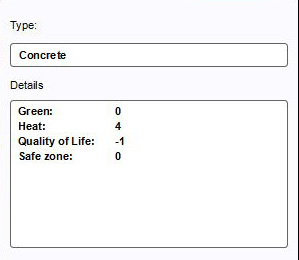 Concrete land type values


Underground
Drawing terrain in the 3D world


How to change land type in the 3D world:
- Select "3D World" in the ribbon header
- Select "Land" in the ribbon bar or select "Change Land Type" from the dropdown menu
- Select land type in the left panel
- Select "Draw Area" in the bottom of the right panel
- Brush becomes active, choose brush options in the bottom panel
- Use the brush in the 3D World to draw the desired terrain
- Select "Apply Selection" to apply the land type change
-
1. Select 3D World in ribbon header
-
2. Select "Land" from the ribbon bar or select "Change Land Type" from the dropdown menu
-
3. Select land type in the left panel
-
4. Select "Draw Area" in the bottom of the right panel
-
5. Brush becomes active in 3D world
-
6. Brush selection in 3D world
-
7. Apply selection
-
8. End result


