How to create a custom breach growth formula
This how-to will describe the steps necessary o iteratively update the breach width using an excel panel. This project assumes you have followed the steps to setup an iterated Flooding Overlay. To setup a project with an iterated Flooding Overlay, see this how-to.
- Open a project setup with an iterative Flooding Overlay
- Add a new Breach Area
- Import a Template Excel Panel for updating the Breach Width
- Import a Template Excel Panel for storing Breach output variables
- Import a Template Text Panel for plotting Breach output variables
- Adjust the Breach Width Excel.
Breach Area
This how-to contain the steps that can be followed to an Area that is identified as a Breach Area for the Flooding Overlay.
- Select Current Situation in the ribbon bar.
- Hover over Areas, and select Add Empty Area.
- Add a new Area.
- Rename it to Breach.
- Add new attribute BREACH_HEIGHT using the Add new attribute section in the attributes tab.
- Draw a selection for the breach.
-
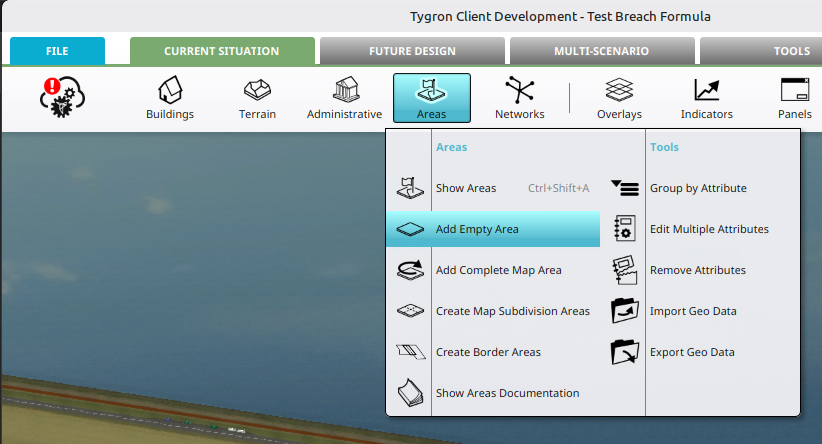 Add a new empty area.
 -
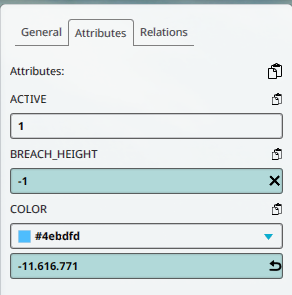 Breach height set for Breach.
 -
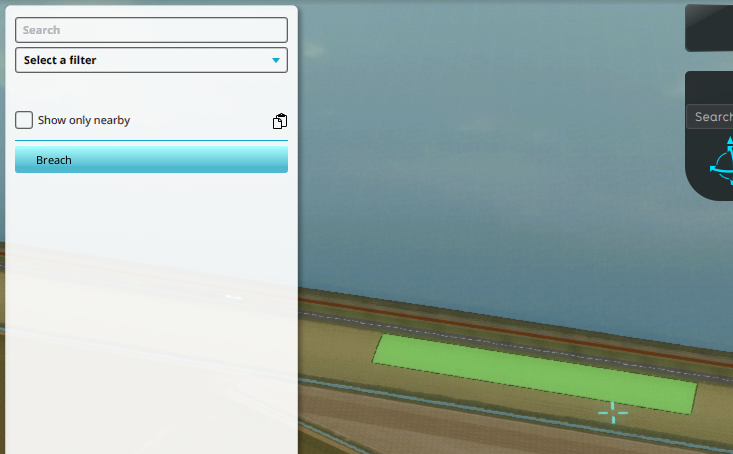 Drawn selection for breach area.


Breach Width Excel Panel
This how-to contain the steps that can be followed to an Area that is identified as a Breach Area for the Flooding Overlay.
- Select Current Situation in the ribbon bar.
- Hover over Panels, and select Find more on Share.
- Navigate to Panels, Water and select the file named "Breach_width_iteration_before.xlsx"
- With the Panel selected, select the Template Tab.
- Adjust the option below Apply Template on to Areas.
- Click on the Select button and select the attribute named BREACH_HEIGHT.
- Click on the Apply Template button to create a Panel instance for the Breach Area.
-
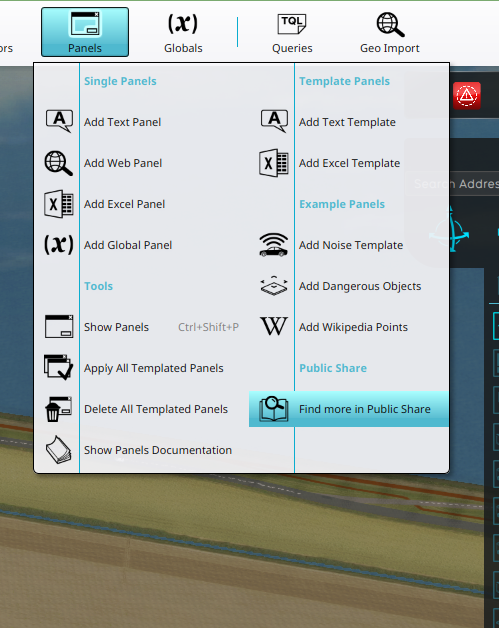 Clicking on the "Find more on Share" option in the Panel Popup in the ribbon bar.
 -
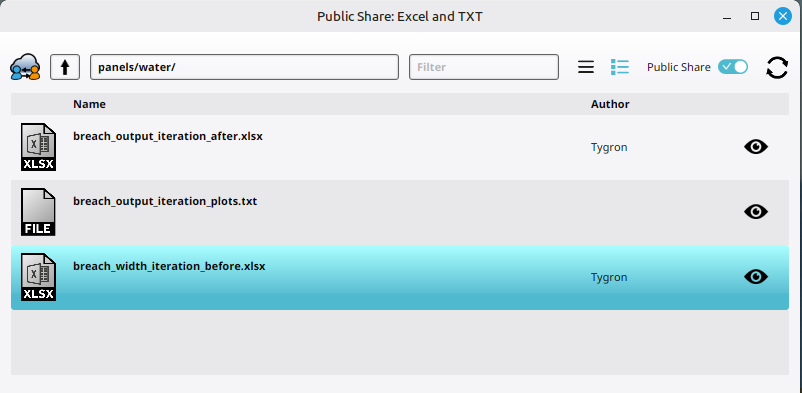 Navigating to the "Breach width iteration" before Excel file on the Public Share.
 -
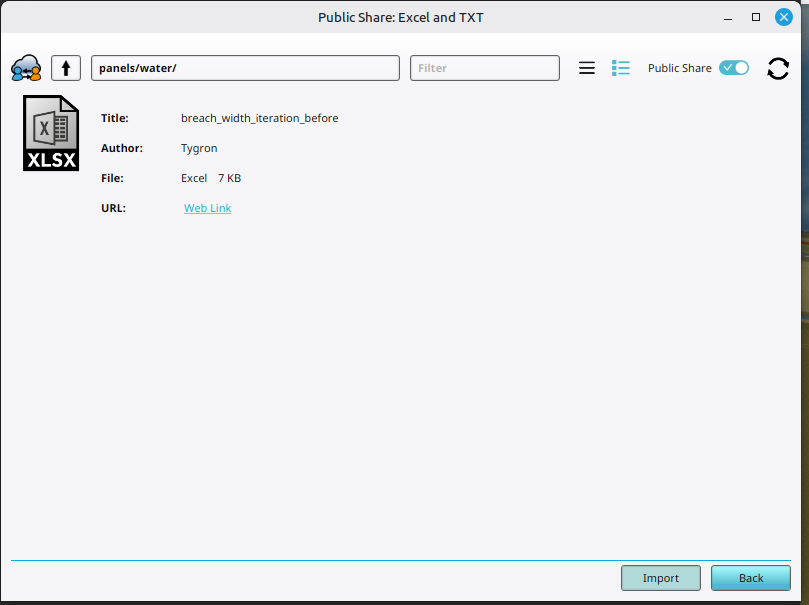 Inspecting and clicking on the import button of the "Breach width iteration before" Excel file.
 -
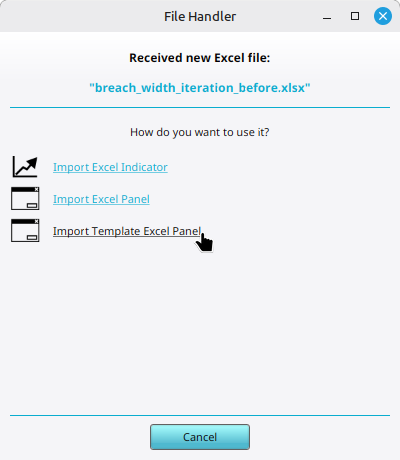 Selecting the option Import Template Excel File
 -
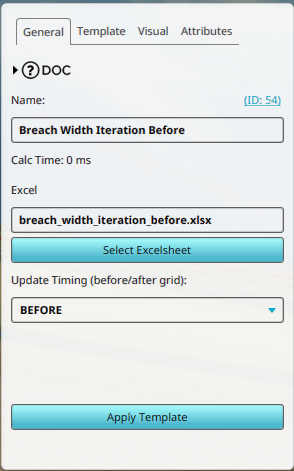 The Excel file and timing set for the Template Excel Panel.
 -
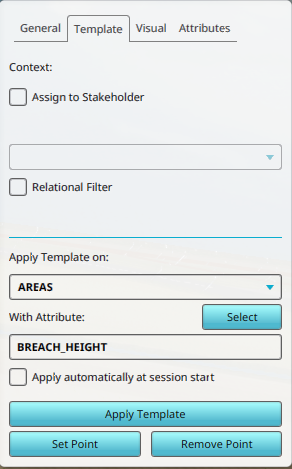 Template settings set on Areas with Breach Height attribute.
 -
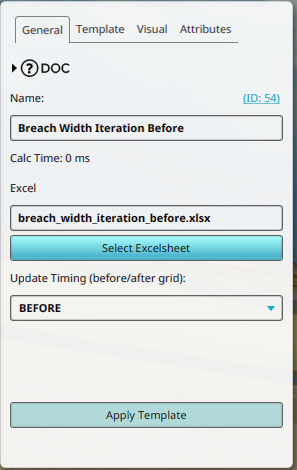 Clicking on the Apply Template button.
 -
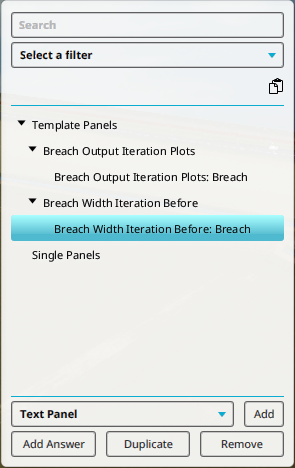 Create Excel Panel by Template Excel Panel.


Breach output values
The following how-to contain the steps that can be followed to add a Template Excel Panel that stores the output values of a breach for each calculated iterations. This is necessary because each iteration, the default output values of the breach are overwritten. By adding this example excel file, you can see how to obtain the output values and append and store these under new attributes in the Breach Area.
- Select Current Situation in the ribbon bar.
- Hover over Panels, and select Find more on Share.
- Navigate to Panels, Water and select the file named "Breach_output_iteration_after.xlsx"
- With the Panel selected, select the Template Tab.
- Adjust the option below Apply Template on to Areas.
- Click on the Select button and select the attribute named BREACH_HEIGHT.
- Click on the Apply Template button to create a Panel instance for the Breach Area.
Breach output plot
The following how-to contain the steps that can be followed to add a Template Text Panel that create a simple plot of the stored output values for a Breach. The Breach Width, Breach Flow and Breach Cumulative Flow are added to the plot.
- Select Current Situation in the ribbon bar.
- Hover over Panels, and select "Find more on Share".
- Navigate to Panels, Water and select the file named "Breach_output_iteration_plots.txt"
- With the Panel selected, select the Template Tab.
- Adjust the option below Apply Template on to Areas.
- Click on the Select button and select the attribute named BREACH_HEIGHT.
- Click on the Apply Template button to create a Panel instance for the Breach Area.
Breach Width Excel
The following how-to contain the steps that can be followed to edit the Breach Width Excel imported in one of the previous steps.
- Edit the Breach Width Excel
- Select the Template Excel Panel named Breach width iteration before
- Click on the Select Excelsheet button to open the Select Excelsheet Panel.
- Click on the Get icon of the accentuated excel named breach_width_iteration_before.xlsx to download it.
- Open the downloaded excel file using your installed Excel editor.
- Inspect the formula used in the B column below the text: Calculated breach width.
- Replace this formula with a realistic formula or with predetermined values.
- Save the excel file
- Select the Template Excel Panel named Breach width iteration before
- Click on the Select Excelsheet button to open the Select Excelsheet Panel.
- Click on the Upload icon of the accentuated excel named breach_width_iteration_before.xlsx to upload a file.
- Select the saved and adjusted Excelsheet.
- Confirm with the select button.
- Click on the Apply Template button to reapply the template.
- Recalculate the project by clicking on the Calculation Cloud.