How to export Revit models to IFC: Difference between revisions
Jump to navigation
Jump to search
m Maxim@tygron.com moved page How to convert a Revit model to a IFC file to How to export Revit models to IFC without leaving a redirect |
No edit summary |
||
| (3 intermediate revisions by 2 users not shown) | |||
| Line 1: | Line 1: | ||
<youtube>zZ4DdC0j7Oc</youtube> | |||
{{editor steps|title= | |||
| Open Revit and open the model that you wish to export. | |||
| Make sure that the model is not too detailed if not needed because the import time in the Tygron Platform will be increased. | |||
| When ready to export go to file -> Export -> IFC. | |||
| In the export dialog choose specifiy the location where the file should be exported. | |||
| In the Export setup dropdown list choose IFC4 Reference view as option. | |||
| Click on export. | |||
| [[How to import an IFC file|Import the IFC file in the Tygron Platform]]. | |||
}} | |||
<gallery mode="nolines"> | |||
File:Revit export dialog.png|thumb|Revit export dialog | |||
</gallery> | |||
{{article end | |||
|seealso= | |||
* [[IFC]] | |||
|external= | |||
* https://sketchup.trimble.com/en - The official Sketchup website | |||
}} | |||
Latest revision as of 09:00, 4 February 2026
How to export Revit models to IFC:
- Open Revit and open the model that you wish to export.
- Make sure that the model is not too detailed if not needed because the import time in the Tygron Platform will be increased.
- When ready to export go to file -> Export -> IFC.
- In the export dialog choose specifiy the location where the file should be exported.
- In the Export setup dropdown list choose IFC4 Reference view as option.
- Click on export.
- Import the IFC file in the Tygron Platform.
-
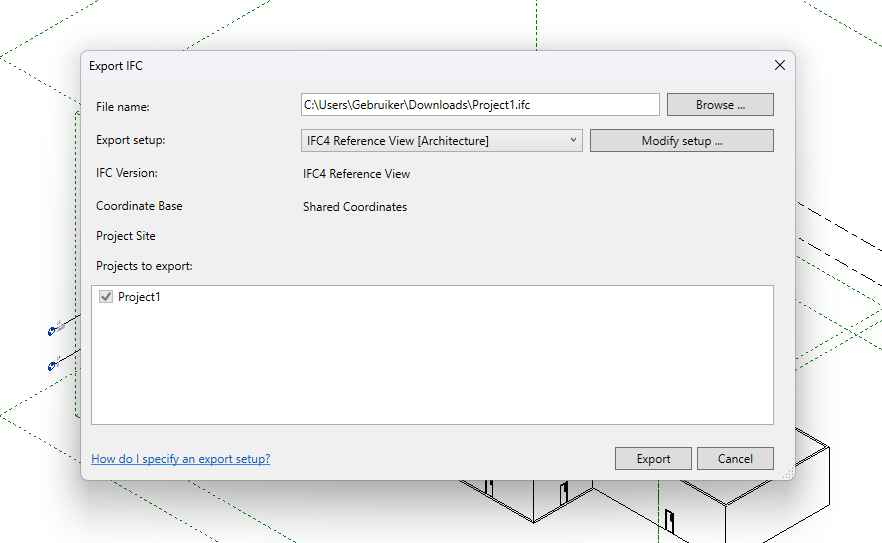 Revit export dialog
