How to add and remove an Overlay: Difference between revisions
Jump to navigation
Jump to search
No edit summary |
No edit summary |
||
| Line 4: | Line 4: | ||
{{Editor steps|title=add an overlay | {{Editor steps|title=add an overlay | ||
| | |Open a project in the editor. | ||
|Hover over the ' | |Select the tab [[Current Situation]] in the [[ribbon bar]]. | ||
|Select the desired | |Hover over the [[Overlays]] to open the Overlay popup. | ||
|Hover over any of the Overlay groups under ''Add New''. | |||
|Select the desired Overlay from the selected Overlay Group. | |||
|...or select the desired overlay from the drop down menu on the bottom of the left panel and select 'Add' from the bottom of the left panel | |...or select the desired overlay from the drop down menu on the bottom of the left panel and select 'Add' from the bottom of the left panel | ||
|<!--Fill in parameters on the right panel, as required for some overlays | |<!--Fill in parameters on the right panel, as required for some overlays | ||
Revision as of 14:30, 20 October 2025
Adding and removing overlays is a generic process, however, certain overlays are dependent on other assets being present too, such as indicators, terrains, vacancy, images, etc. For more information please refer to the respective main articles for the specific overlays.
How to add an overlay:
- Open a project in the editor.
- Select the tab Current Situation in the ribbon bar.
- Hover over the Overlays to open the Overlay popup.
- Hover over any of the Overlay groups under Add New.
- Select the desired Overlay from the selected Overlay Group.
- ...or select the desired overlay from the drop down menu on the bottom of the left panel and select 'Add' from the bottom of the left panel
- The overlay icon will now appear.
-
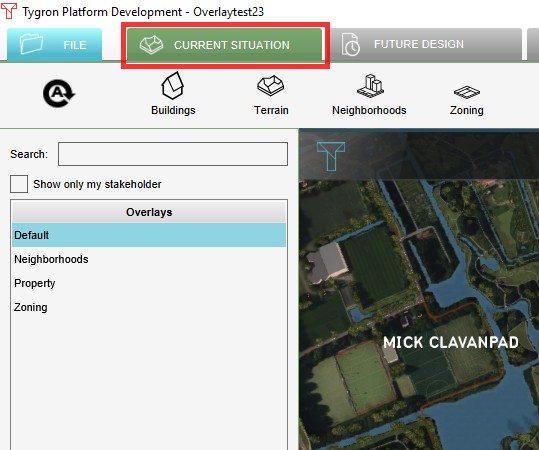 1. Select 'Current Situation'
 -
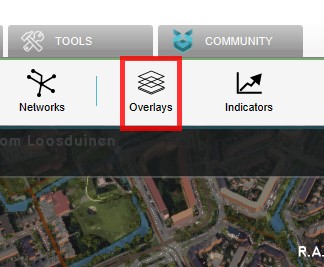 2. Hover over the Overlays button
 -
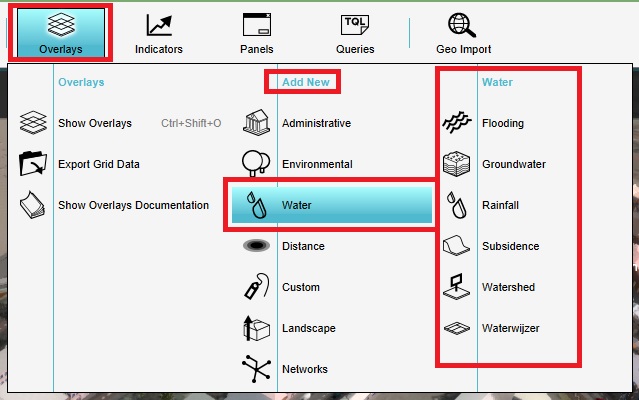 3. Select desired Overlay from pop up menu when you hover over the options in the Add New list.
 -
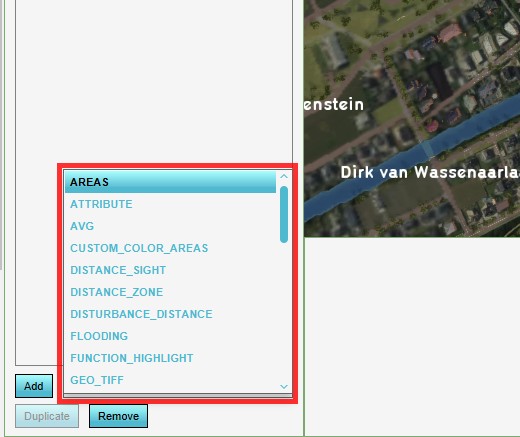 4. Or select Overlays in the Ribbon bar and select desired overlay from drop down menu on the bottom of the left panel
 -
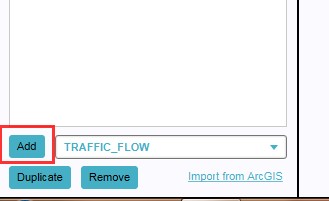 4. Select 'Add' from the bottom of the left panel
 -
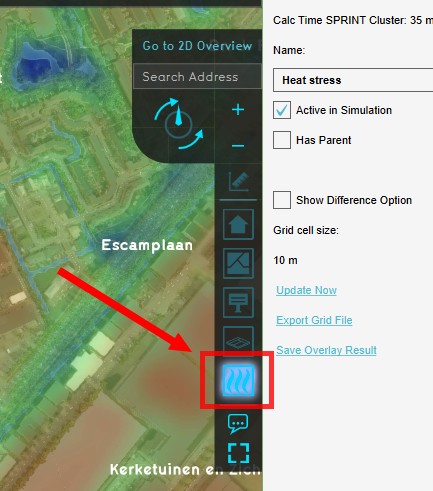 5. The overlay icon will now appear.


How to remove an overlay:
- Select in the editor 'Current Situation' from the ribbon
- Select 'Overlays' from the ribbon bar
- Select the desired overlay from the list of active overlays on the left panel
- Select 'remove' from the bottom of the left panel
- Confirm the removal in the pop up confirmation message
-
1. Select 'Current Situation'
-
2. Select Overlays
-
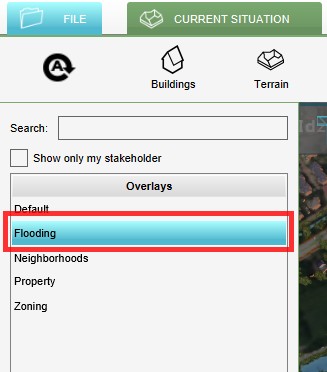 3. Select desired overlay from the list of active overlays on the left panel
 -
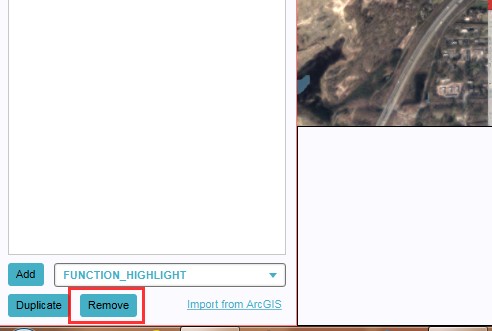 4. Select 'Remove' from the bottom of the left panel
 -
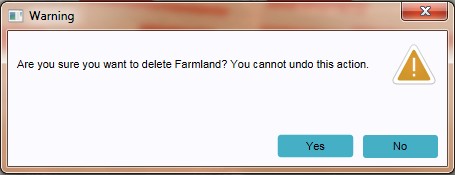 5. Confirm the removal in the pop up confirmation message


Sometimes it can be convenient to duplicate an already existing overlay. To do so, follow the steps for removal, but select 'Duplicate' instead of 'Remove'.