How to export Blender models to IFC: Difference between revisions
Jump to navigation
Jump to search
No edit summary |
No edit summary |
||
| Line 1: | Line 1: | ||
<youtube>E6Aqbtuy9dk</youtube> | <youtube>E6Aqbtuy9dk</youtube> | ||
3D models can be exported from [[Blender]] to an [[IFC]] format, so that they can be imported in the {{software}}. | |||
An IFC File can contain multiple hierarchies of Sites, Buildings, Building Storeys and individual Building parts, such as Structure Elements. | An IFC File can contain multiple hierarchies of Sites, Buildings, Building Storeys and individual Building parts, such as Structure Elements. | ||
A basic knowledge of how to use the [[Blender]] software is assumed. | |||
{{editor steps|title= | {{editor steps|title= | ||
| Open Blender and make sure that the "Bonsai" add-on is installed. The add-on can be found from the extensions dialog in Blender or you can download it from: https://bonsaibim.org/ | | Open Blender and make sure that the "Bonsai" add-on is installed. The add-on can be found from the extensions dialog in Blender or you can download it from: https://bonsaibim.org/ | ||
| After installing the Blender interface is slightly changed with the Bonsai features. A new tab "BIM" has been added. Click on this tab if it is not yet opened. | | After installing the Blender interface is slightly changed with the Bonsai features. A new tab "BIM" has been added. Click on this tab if it is not yet opened. | ||
| Line 38: | Line 39: | ||
{{article end | {{article end | ||
|seealso= | |seealso= | ||
*[[IFC]] | * [[IFC]] | ||
|external= | |||
* https://www.blender.org/ - The official Blender website | |||
}} | }} | ||
Latest revision as of 10:21, 22 October 2025
3D models can be exported from Blender to an IFC format, so that they can be imported in the Tygron Platform.
An IFC File can contain multiple hierarchies of Sites, Buildings, Building Storeys and individual Building parts, such as Structure Elements.
A basic knowledge of how to use the Blender software is assumed.
How to export Blender models to IFC:
- Open Blender and make sure that the "Bonsai" add-on is installed. The add-on can be found from the extensions dialog in Blender or you can download it from: https://bonsaibim.org/
- After installing the Blender interface is slightly changed with the Bonsai features. A new tab "BIM" has been added. Click on this tab if it is not yet opened.
- On the right side you can see the Project overview menu.
- We will first need to make a new BIM project. In the New Project Wizard make sure that the IFC schema is set to IFC4.
- Other unit settings can be changed by preference but you can always leave the default settings.
- Click on create project.
- A new folder structure has been created as can be seen in the outliner.
- Create a new BIM model with the available bonsai tools or if you already have a ready made model just open it in Blender.
- Select the building and go to the object information tab on the right menu.
- We will now need to assign an IFC class to the building. We will do this by adjusting the object metadata. In the Products setting change the value to ifcElement.
- For class change the value to ifcWall. Other classes could be used if the model consists of multiple objects. In this example we assume that we have a building consisting of 1 model object.
- For predefined type choose SOLIDWALL.
- Click on the Assign IFC Class button. The model is now ready to be exported.
- Go to File -> Save IFC Project.
- Make sure IFC4 is selected in the export dialog. It is now ready to be imported into the Tygron Platform.
- Import the IFC file in the Tygron Platform.
-
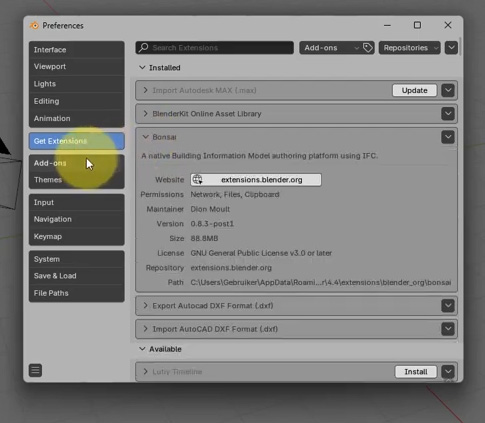 Bonsai plugin
 -
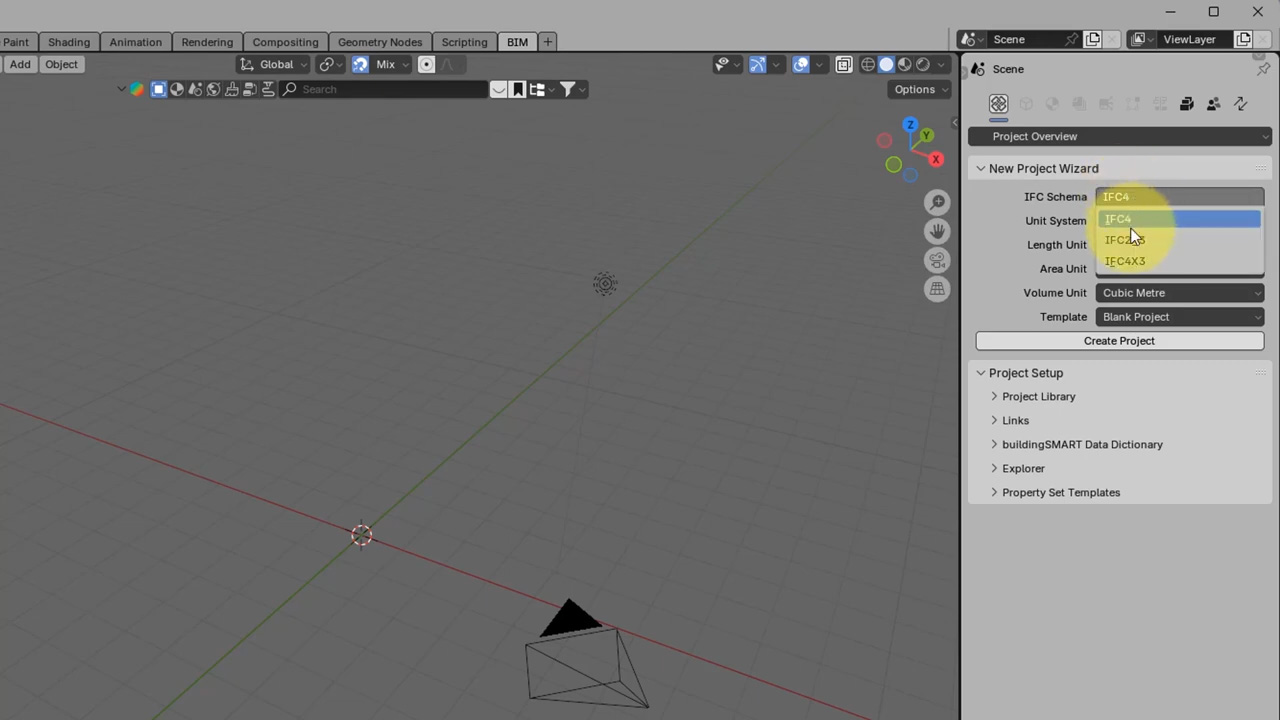 New project wizard
 -
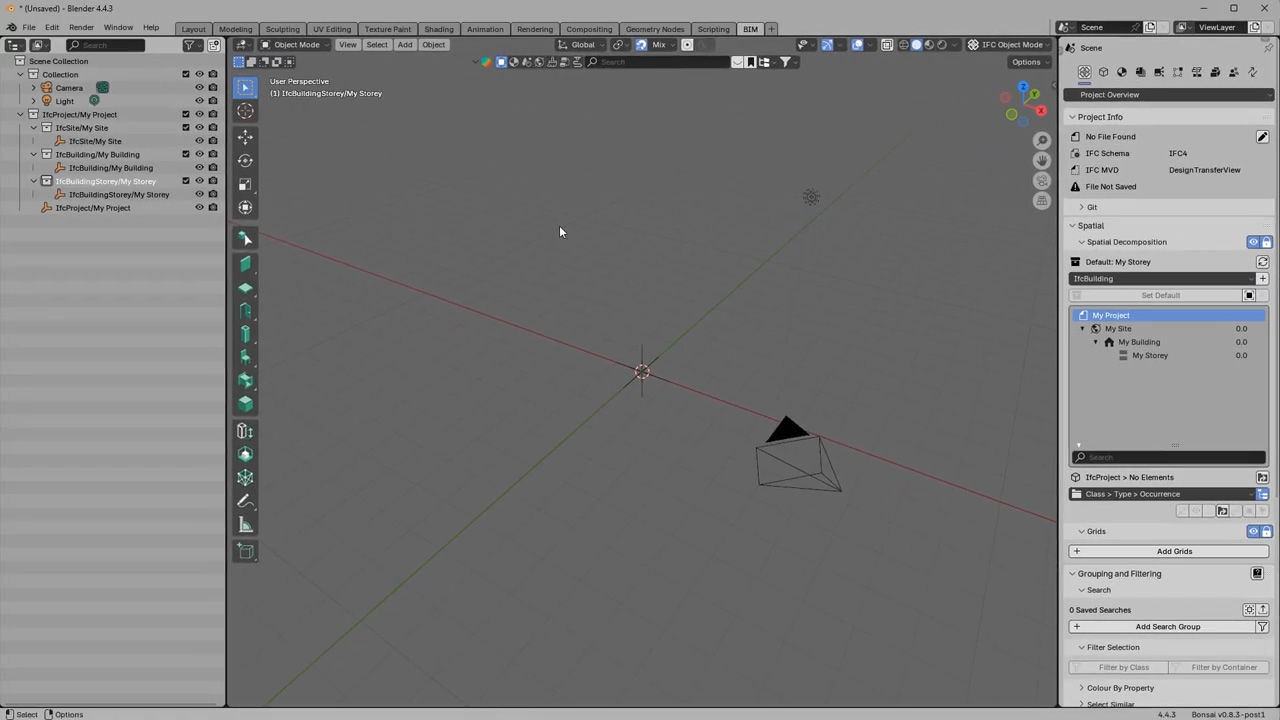 New project created
 -
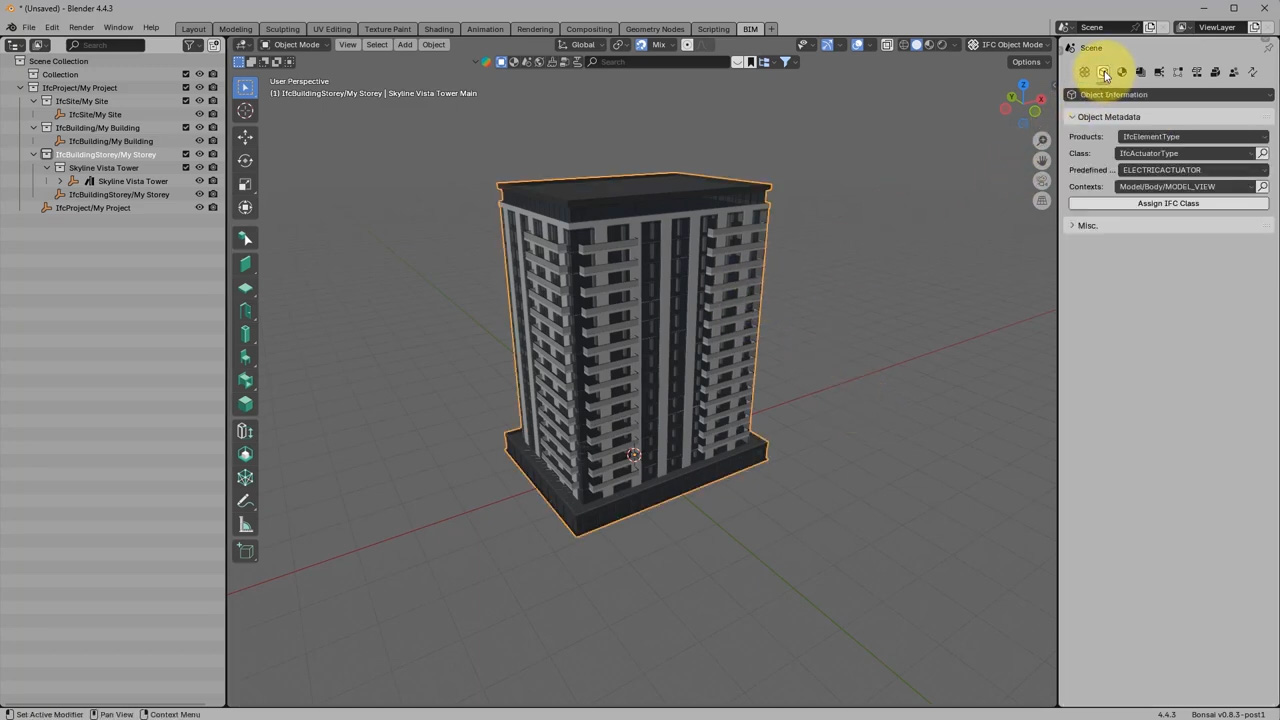 Open building
 -
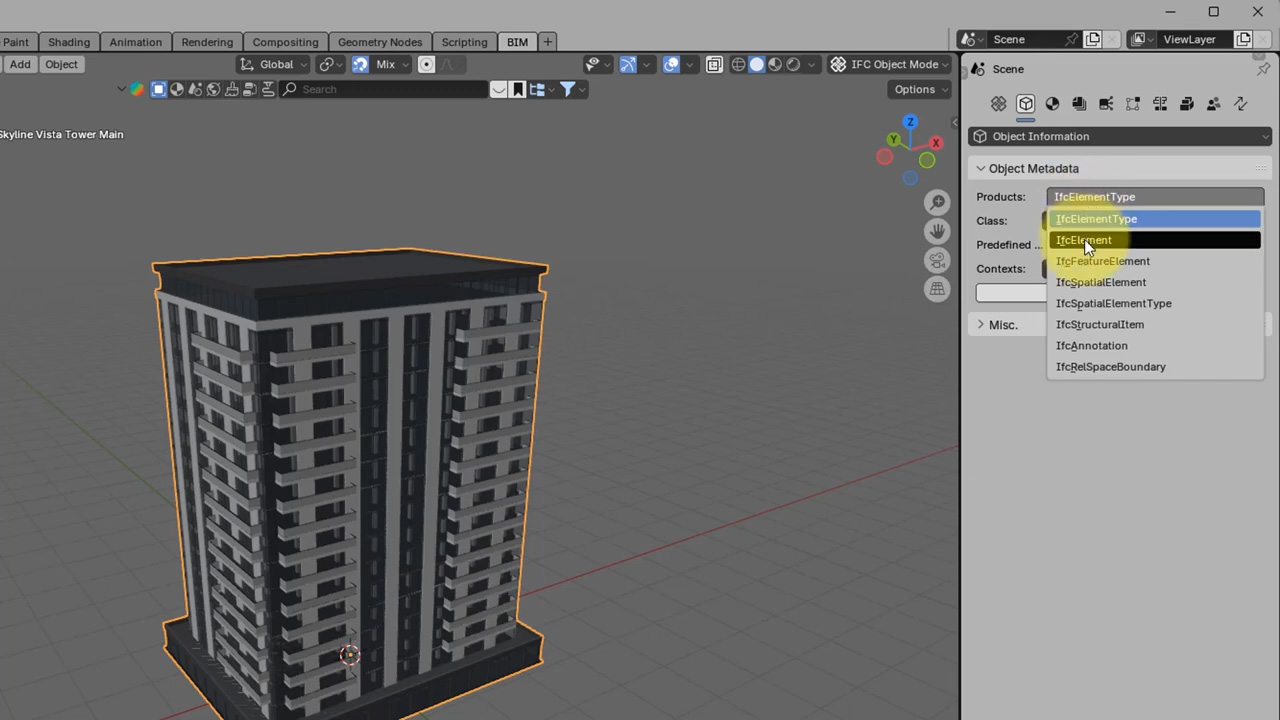 Assign ifc element
 -
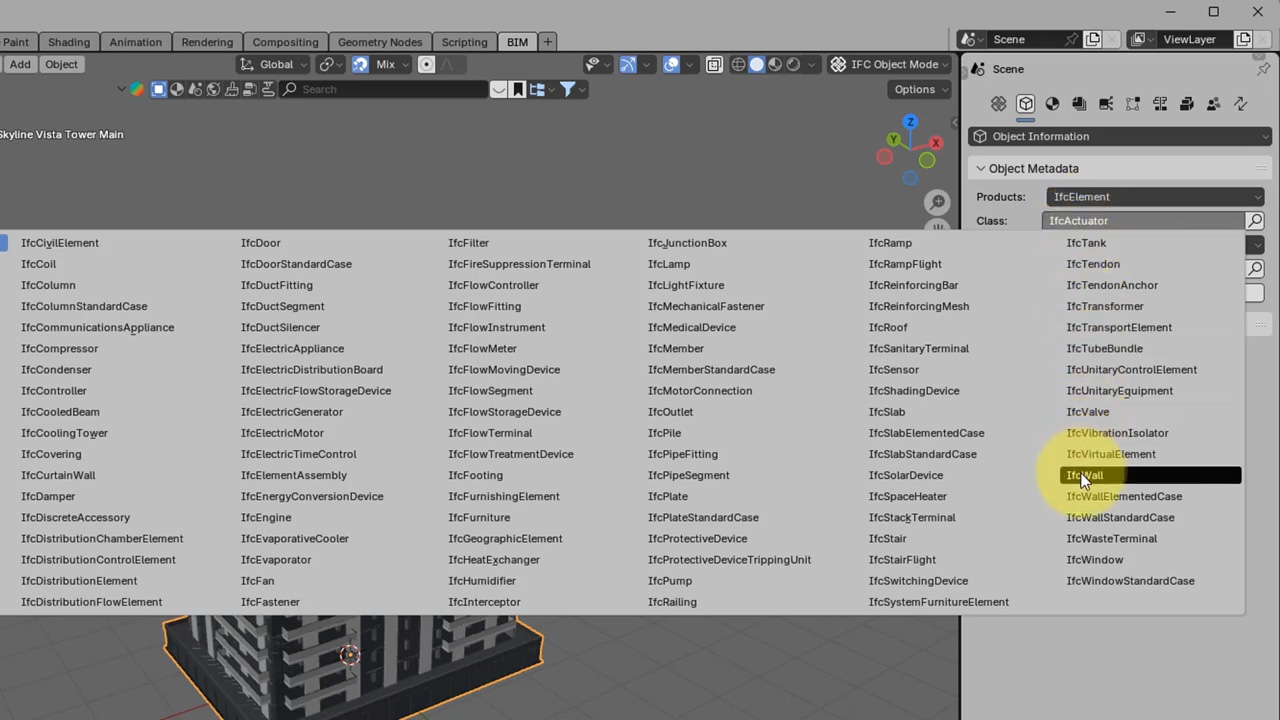 Assign ifc class
 -
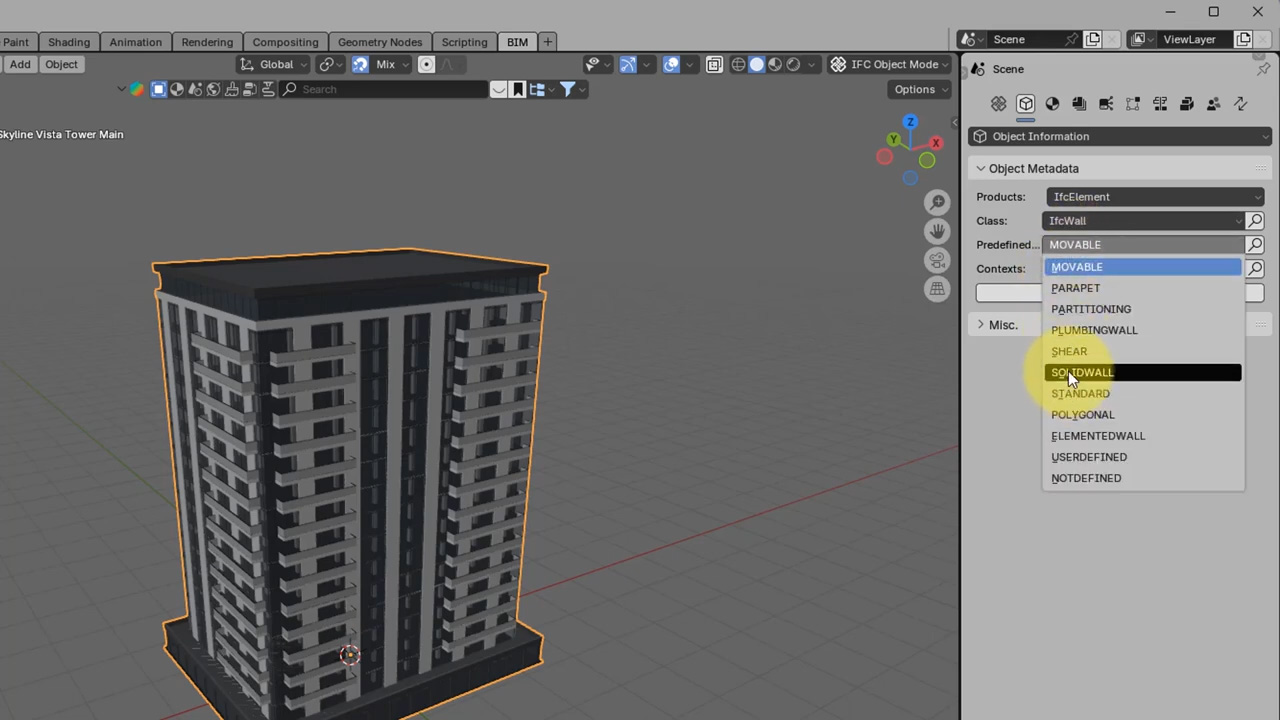 Assign type
 -
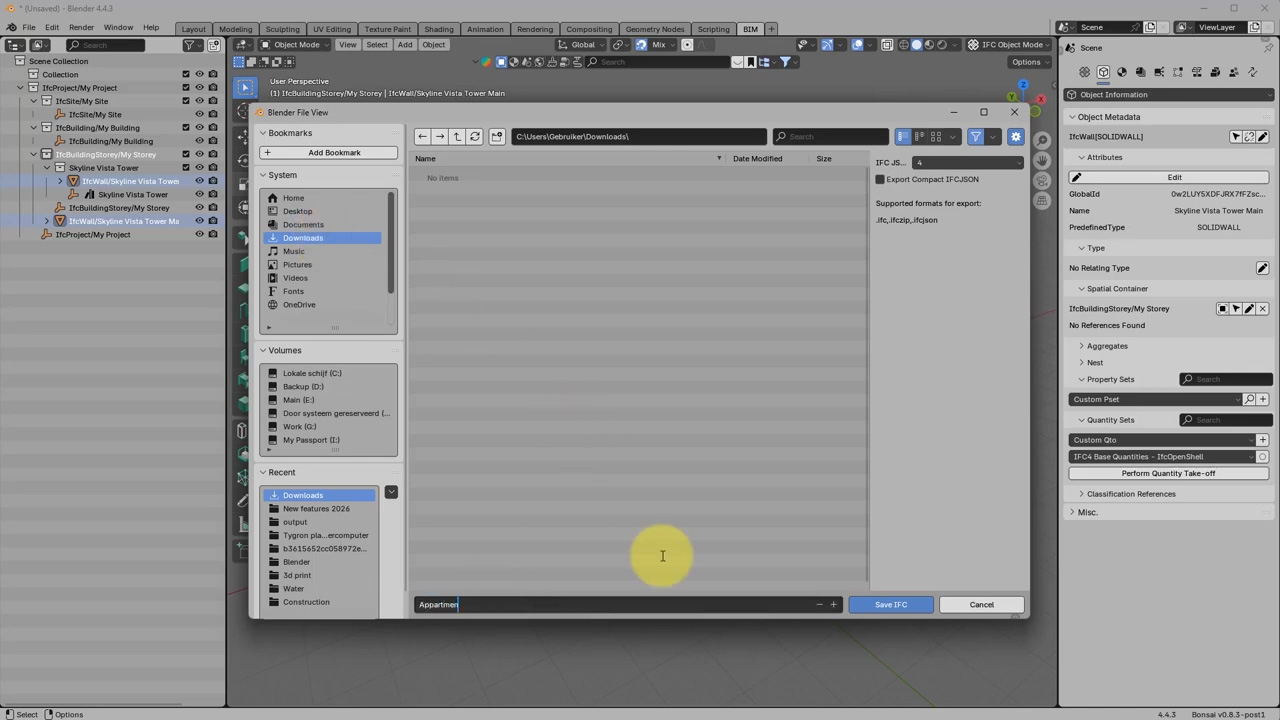 Save project


