How to edit a Measure with QGIS
Please note: This page is currently being updated.
- Create a new measure.
- Hover to Measure in the Ribbon and select export geo data.
- In the filter option select your measure, e.g. "Mijn maatregel".

- Other options like format can be ignored, click the "Copy URL" button below to get the WFST endpoint.
- Open QGIS and add a new WFS layer the URL is in your clipboard, just paste it.
- QGIS will show the different layers of the Measure (e.g. buildings, water, terrains).

- Start editing the layer and when saving the WFS transactions will be sent to the Tygron Platform updating the measure in your project. For more editing tips, see How to edit your project data via WFS.

How to Add a Measure WFS to QGIS:
- Open a Project in Editor mode
- In the ribbon bar, select Future Design
- Click on Measures to inspect your measures
- In case the project does not contain a measure, add one by clicking on the Add Button.
- Optionally rename the added measure
- How over Measures in the ribbon bar and select Export Geo Data.
- For Filter, select the specific Measure you want to edit.
- Click on copy URL next to Web Feature Service (WFS)
- Open QGIS
- Hover over Layers in the ribbon bar, and under Add Layer, select Add WFS / OGC Api Feature Layer
- In the Data Source Manager window, Click on the New button
- Provide a custom name for the service
- Select the URL field and paste the copied WFS URL.
- Click on OK.
- Click on Connect
- Select the Layers you want to edit and click on Add.
- Close the Window.
-
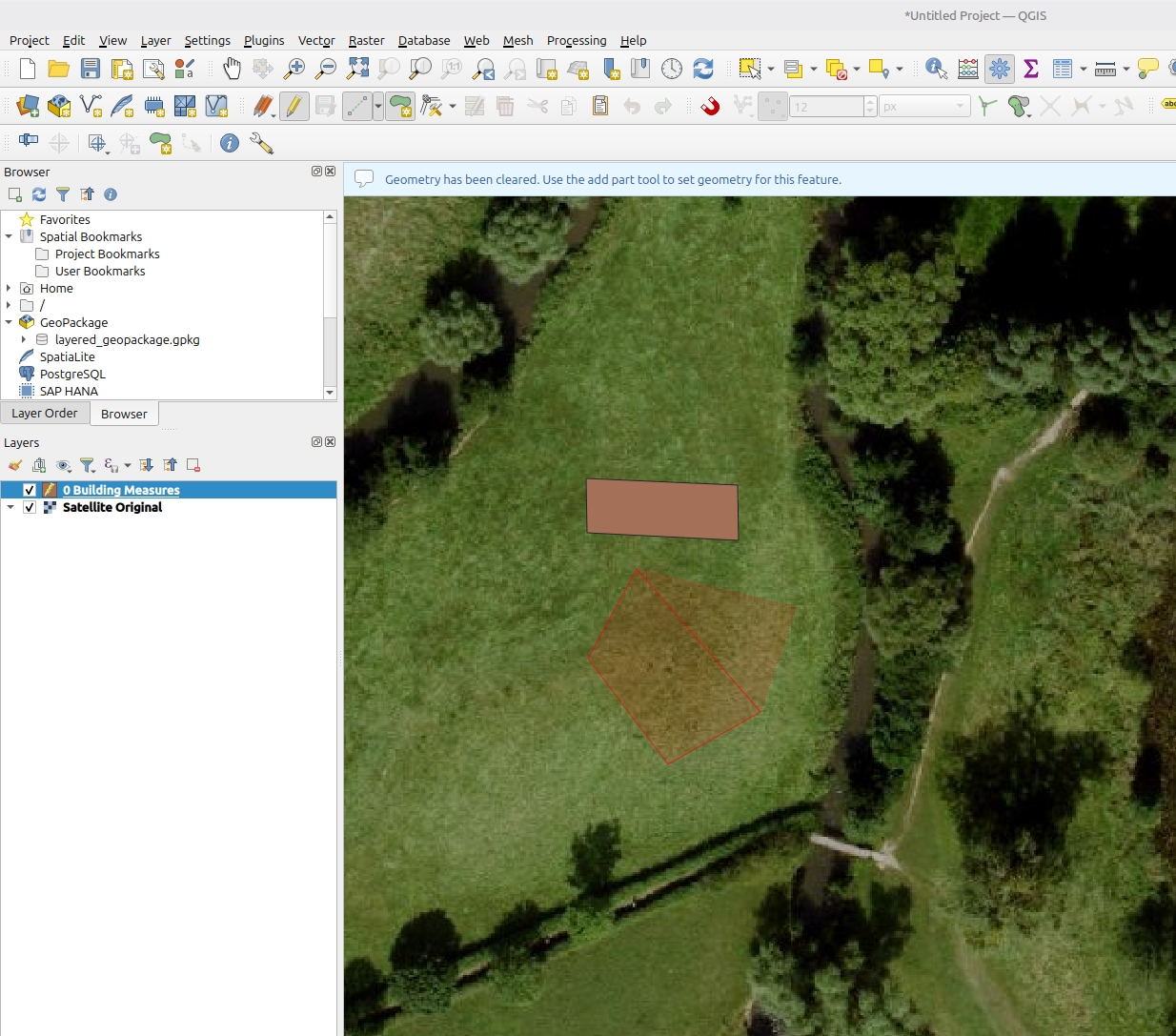 Drawing a new Measure building next to an existing one, with Satellite Original WMS as background.
 -
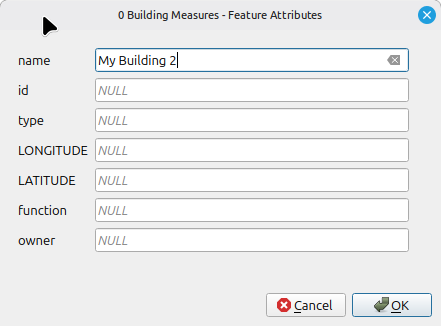 Providing a name for the added Measure Building.
 -
 Click on the save button to store the changes made to the layer.


How to Edit a Measure WFS in QGIS:
- With the Measure WFS Layers added by the previous How-to, select a Layer you want to edit.
- Additionally, add a original satellite WMS of your project to draw upon.
- To edit the layer, follow the steps described in How to edit your project data via WFS