How to access your project data in Power BI
Data from projects can be accessed by Power BI using a web connection for the GeoJSON endpoint.
How to access your project data in Power BI.:
- Open any project, and preferable put it on Keep alive.
- Choose an item that you want connect to, such as Neighborhoods
- Hover over Neighborhoods, and in the popup select Export Geo Data
- As the format, select GeoJSON (Convert collections to MultiPolygons)
- Click on the second Copy URL button, next to Online GeoJSON Endpoint.
- Open the Power BI Desktop application
- Create a new project or open an existing one.
- Under add new data, select web
- Paste the link in the url field and select ok.
- By default, create a table of all the properties.
- Click on the Close and Apply button.
- Add a chart type, such as the bar chart.
- In the detail panel, identify the x data values field.
- In the data panel, unfold the connection item and drag the name field from the list of properties to the x data value field.
- Similarly, select the data field you want a bar chart of, such as "AANTAL_INWONERS" and drag this property to the y data value field.
- The bar chart should now be created.
-
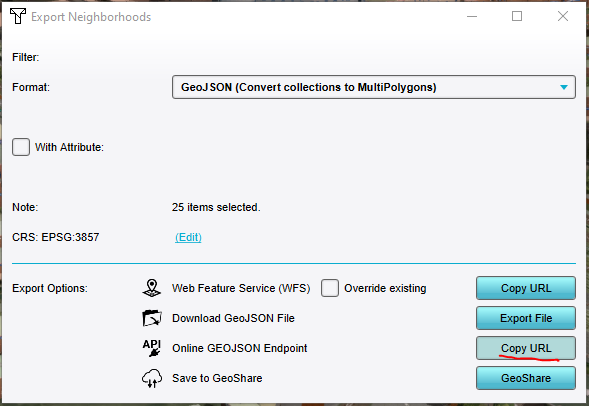 Copy URL for "Neighborhoods as GeoJSON"-endpoint.
 -
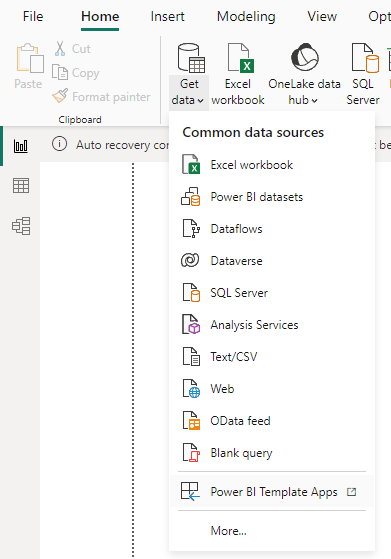 Paste the URL and create a web connection.
 -
Create a table for the GeoJSON web connection.
-
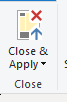 Close and apply.
 -
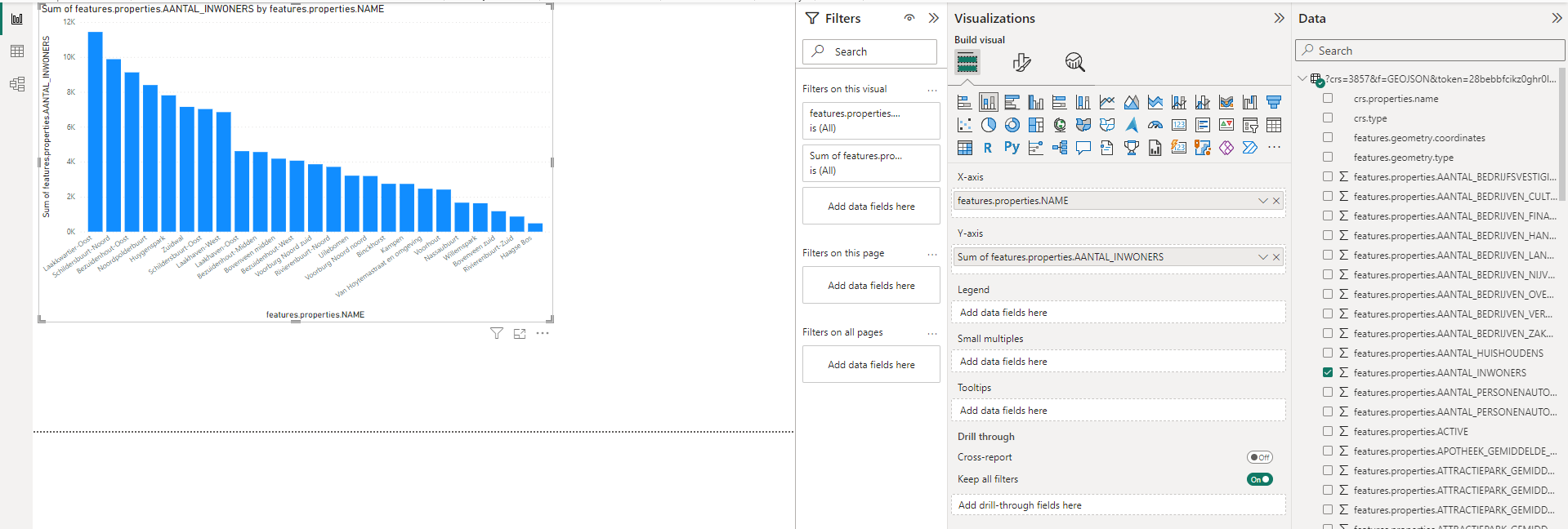 Bar chart with detail panel and web connection panel.
 -
Configured bar chart with neighborhood name and number of inhabitants.


