How to combine multiple calculations into a single result
How to combine multiple calculations into a single result:
- Hover over Overlays in the ribbon bar.
- Hover over Grid Calculation under Add New, and select Combo.
- For Grid A, select a Grid Overlay
- For Formula, write AT if you want to collect all timeframes, A if you only want to collect the last timeframe.
- Click on the update link to initialize the Combo Overlay
- Select the Attributes tab
- In the Add new Attribute name field, write SKIP_NO_DATA
- In the Add new Attribute value field, write 1
- Click on the Save new Attribute button.
- Hover over the Calculation Cloud in the ribbon bar.
- Select the option Reset Excel X-Queries.
- The Combo Overlay is now setup to accumulate overlay results.
-
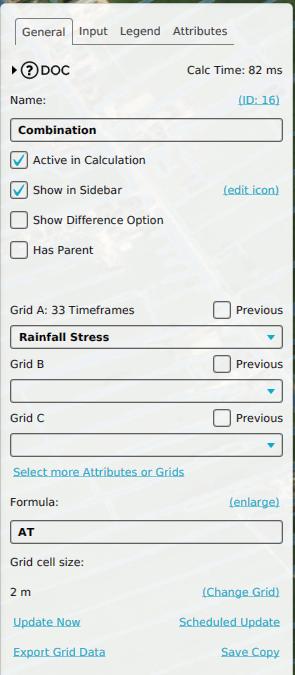 General setup for accumulating all timeframes of a Grid Overlay.
 -
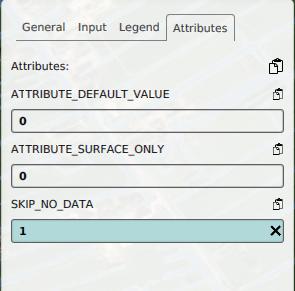 Adding the attribute named SKIP_NO_DATA.
 -
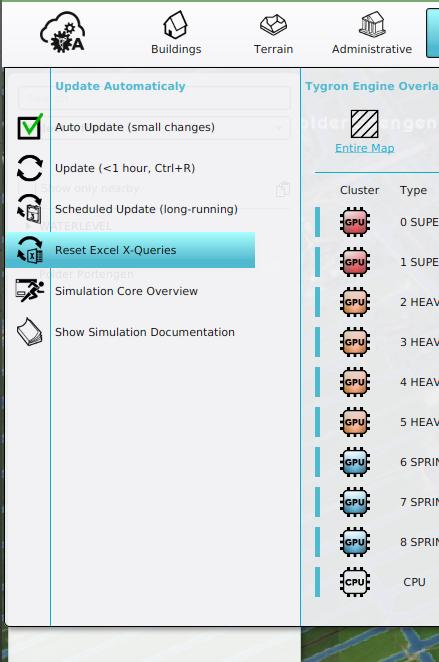 Reset Excel X-Queries under Calculation Cloud.


Example Demo Rainfall
How to combine multiple calculations into a single result:
- Open the project Demo Rainfall.
- Select Areas in the ribbon bar.
- Select the group named WATERLEVEL and click on the deactivate button to deactivate the areas.
- Follow the How-to above for the Accumulation Combo Overlay.
- Inspect the initial Combo Overlay, it should be empty.
- Select Areas in the ribbon bar.
- Activate the first three Water Level Areas.
- Notice both the Combo Overlay and Rainfall Overlay calculated only for those areas.
- Deactivate the areas again, and activate the remaining Water Level Areas.
- Notice the Combo Overlay is calculated for all areas, while the Rainfall overlay is only calculated for the last 5 Water Level Areas.
- Select the Polder Kockengen Area.
- Select the Attribute tab and add new attribute: WATERLEVEL with a value of -3.
- Notice that the Polder Kockengen Area is now calculated as well in the Combo Overlay, while the Rainfall Overlay is only calculated for the Polder Kockengen Area.