How to calculate Shadows
Jump to navigation
Jump to search
Shadows can be calculated by either the Shadow Overlay or the Heat Overlay. In case only Shadows are of importance, follow this how-to to add and setup a Shadow Overlay. More configuration options are provided at the end.
How to calculate Shadows:
- Select Current Situation in the ribbon bar
- Hover over Overlays and under Environmental, select Shadow.
- With the Shadow Overlay selected, click on the Configuration Wizard button to open the Shadow Wizard.
- Once the Shadow Wizard has initialized, click next to begin.
- In the Select Days step, click on the edit button and select a start and optional end date and select which hours of the day should be calculated.
- Click next to confirm.
- In the Hour Values step, inspect the chosen dates and hours of day and continue.
- In the Elevation step, select the default option: use Digital Terrain and Surface Model for elevation and click next.
- In the Foliage Step, select the default option Tree Function's height and click next.
- In the Foliage Function Step, optionally inspect Function values and click next.
- In the Visualize Crown Factor, optionally select the Foliage Crown Factor option and click next.
- In the continue to the Output Overlays Step and finish the wizard.
- With the wizard closed, click on the Update link in the Shadow Overlay Detail Panel.
- Inspect the Overlay by clicking on the play button in the Overlay legend panel.
-
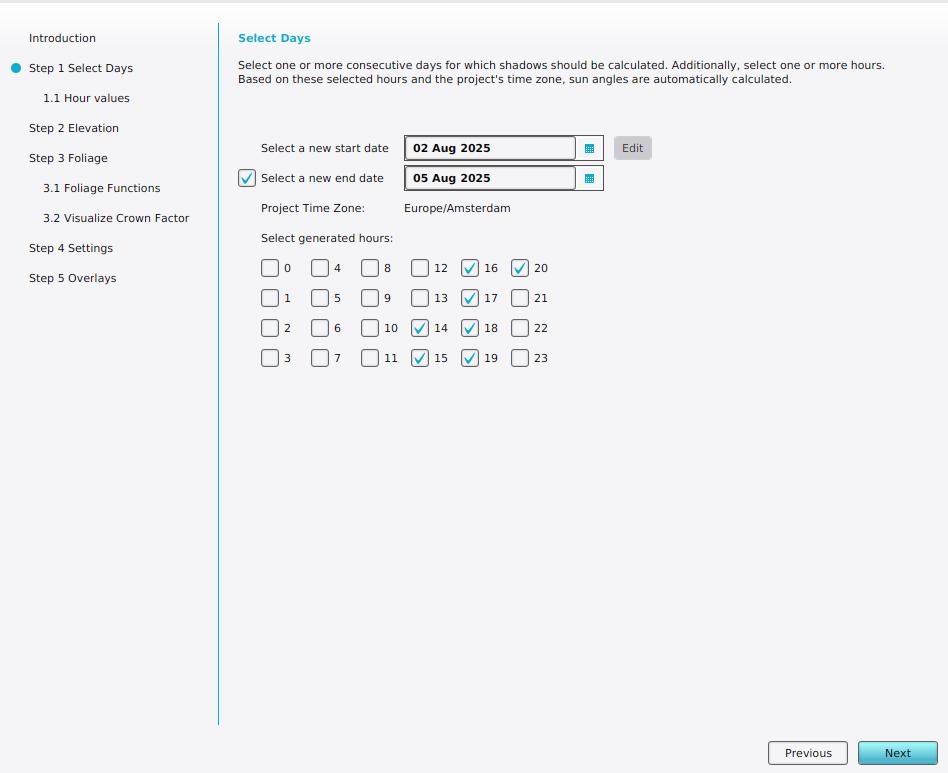 Select a start and end date.
 -
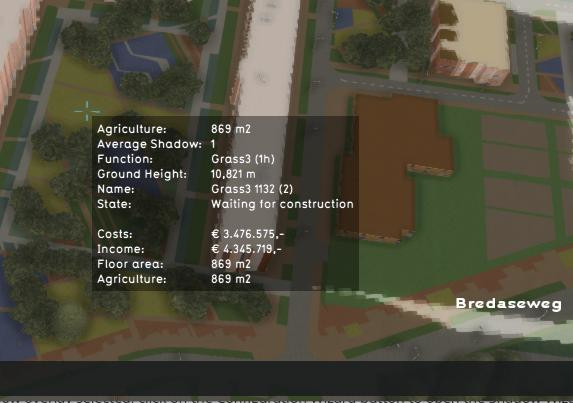 Tooltip of calculated shadow overlay.


Notes
- Grid Overlays can be used to provide an alternative Building and/or Terrain Elevation prequels, as well as Foliage Height.
See also