How to edit a Measure with QGIS: Difference between revisions
Jump to navigation
Jump to search
No edit summary |
No edit summary |
||
| (14 intermediate revisions by 2 users not shown) | |||
| Line 1: | Line 1: | ||
<youtube>xcCoHqIQIM8</youtube> | |||
Follow the steps of the how-to's below to add a WFS layer to QGIS and edit a specific layer. | |||
{{howto | {{howto | ||
|title= | |title=Add a Measure WFS to QGIS | ||
|Open a [[Project]] in [[Editor]] mode | |Open a [[Project]] in [[Editor]] mode | ||
|In the [[ribbon bar]], select [[Future Design]] | |In the [[ribbon bar]], select [[Future Design]] | ||
| Line 27: | Line 13: | ||
|For Filter, select the specific Measure you want to edit. | |For Filter, select the specific Measure you want to edit. | ||
|Click on copy URL next to Web Feature Service (WFS) | |Click on copy URL next to Web Feature Service (WFS) | ||
|Open QGIS | |||
|Hover over Layers in the ribbon bar, and under Add Layer, select Add WFS / OGC Api Feature Layer | |||
|In the Data Source Manager window, Click on the ''New'' button | |||
|Provide a custom name for the service | |||
|Select the URL field and paste the copied WFS URL. | |||
|Click on OK. | |||
|Click on Connect | |||
|Select the Layers you want to edit and click on Add. | |||
|Close the Window. | |||
|}} | |||
<gallery> | |||
File:Wfsmeasure.png|Obtain the URL by exporting a Measure as a WFS Service. | |||
File:Qgis-measure.png|Select a Layer for the added QGIS WFS Connection of a Project's Measure WFS. | |||
</gallery> | |||
{{howto | |||
|title=Edit a Measure WFS in QGIS | |||
|With the Measure WFS Layers added by the previous How-to, select a Layer you want to edit. | |||
|Additionally, [[How to add your project's WMS in QGIS|add a original satellite WMS of your project to draw upon]]. | |||
|To edit the layer, follow the steps described in [[How to edit your project data via WFS]] | |||
|}} | |}} | ||
<gallery> | |||
File:QGIS_WFS_Measure_draw_new_building.png|Drawing a new Measure building next to an existing one, with Satellite Original WMS as background. | |||
File:QGIS_WFS_Measure_new_feature_attributes.png|Providing a name for the added Measure Building. | |||
File:QGIS wfs save button.png|Click on the save button to store the changes made to the layer. | |||
</gallery> | |||
{{article end | {{article end | ||
|notes= | |notes= | ||
* | |seealso= | ||
*[[Measure]] | |||
*[[QGIS]] | |||
*[[WFS]] | |||
|howtos=*[[How to edit your project data via WFS]] | |||
*[[How to access your Project WFS in QGIS]] | |||
*[[How to modify your project's WFS url to allow transactions to overwrite conflicting data]] | |||
}} | }} | ||
Latest revision as of 10:09, 22 January 2026
Follow the steps of the how-to's below to add a WFS layer to QGIS and edit a specific layer.
How to Add a Measure WFS to QGIS:
- Open a Project in Editor mode
- In the ribbon bar, select Future Design
- Click on Measures to inspect your measures
- In case the project does not contain a measure, add one by clicking on the Add Button.
- Optionally rename the added measure
- How over Measures in the ribbon bar and select Export Geo Data.
- For Filter, select the specific Measure you want to edit.
- Click on copy URL next to Web Feature Service (WFS)
- Open QGIS
- Hover over Layers in the ribbon bar, and under Add Layer, select Add WFS / OGC Api Feature Layer
- In the Data Source Manager window, Click on the New button
- Provide a custom name for the service
- Select the URL field and paste the copied WFS URL.
- Click on OK.
- Click on Connect
- Select the Layers you want to edit and click on Add.
- Close the Window.
-
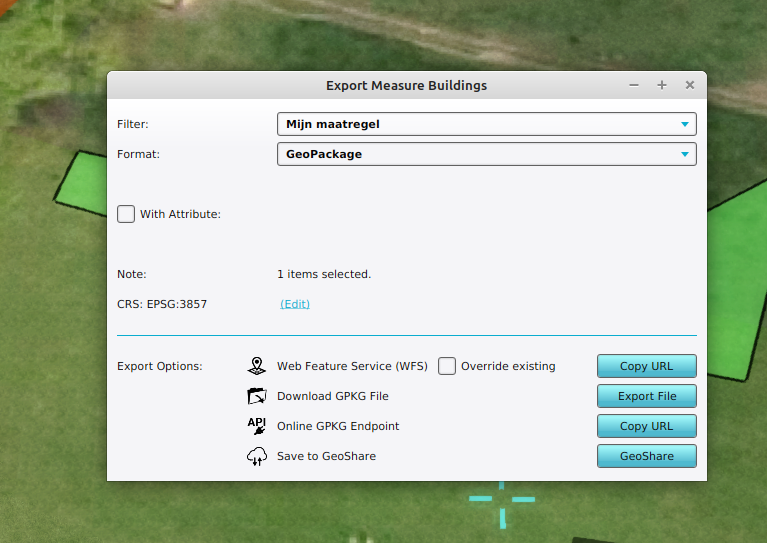 Obtain the URL by exporting a Measure as a WFS Service.
 -
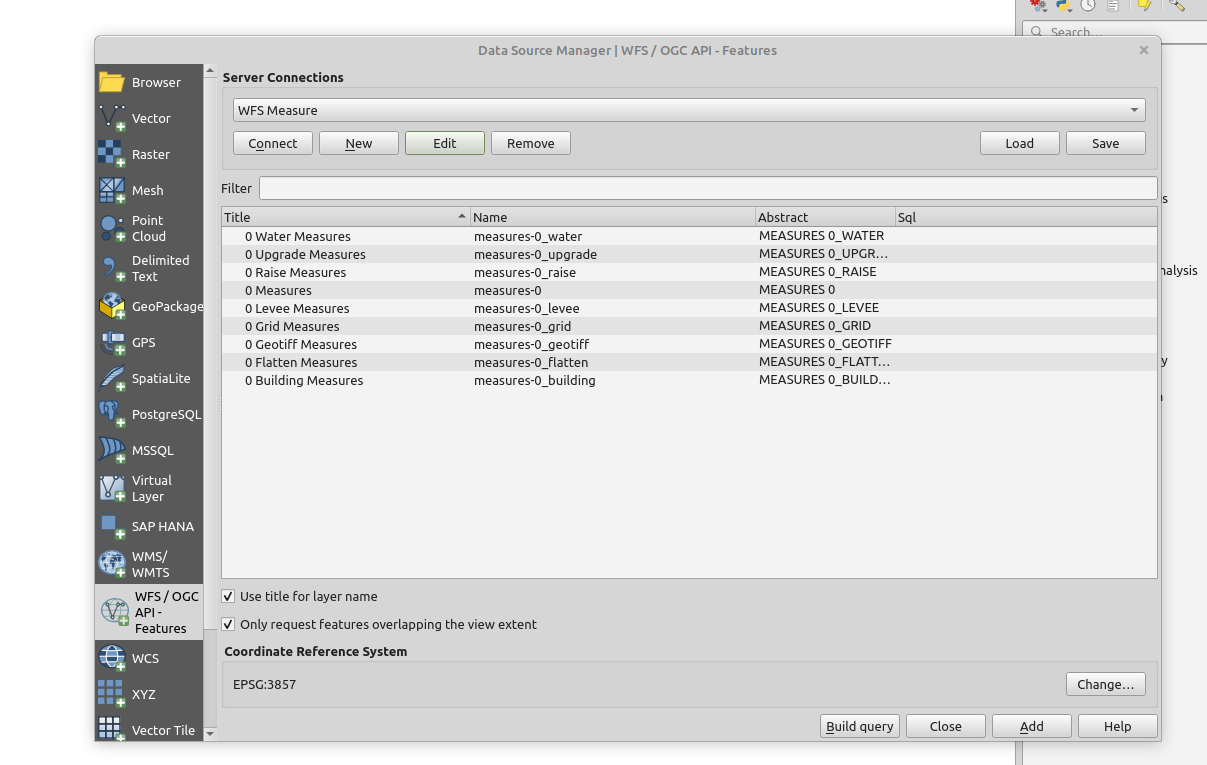 Select a Layer for the added QGIS WFS Connection of a Project's Measure WFS.


How to Edit a Measure WFS in QGIS:
- With the Measure WFS Layers added by the previous How-to, select a Layer you want to edit.
- Additionally, add a original satellite WMS of your project to draw upon.
- To edit the layer, follow the steps described in How to edit your project data via WFS
-
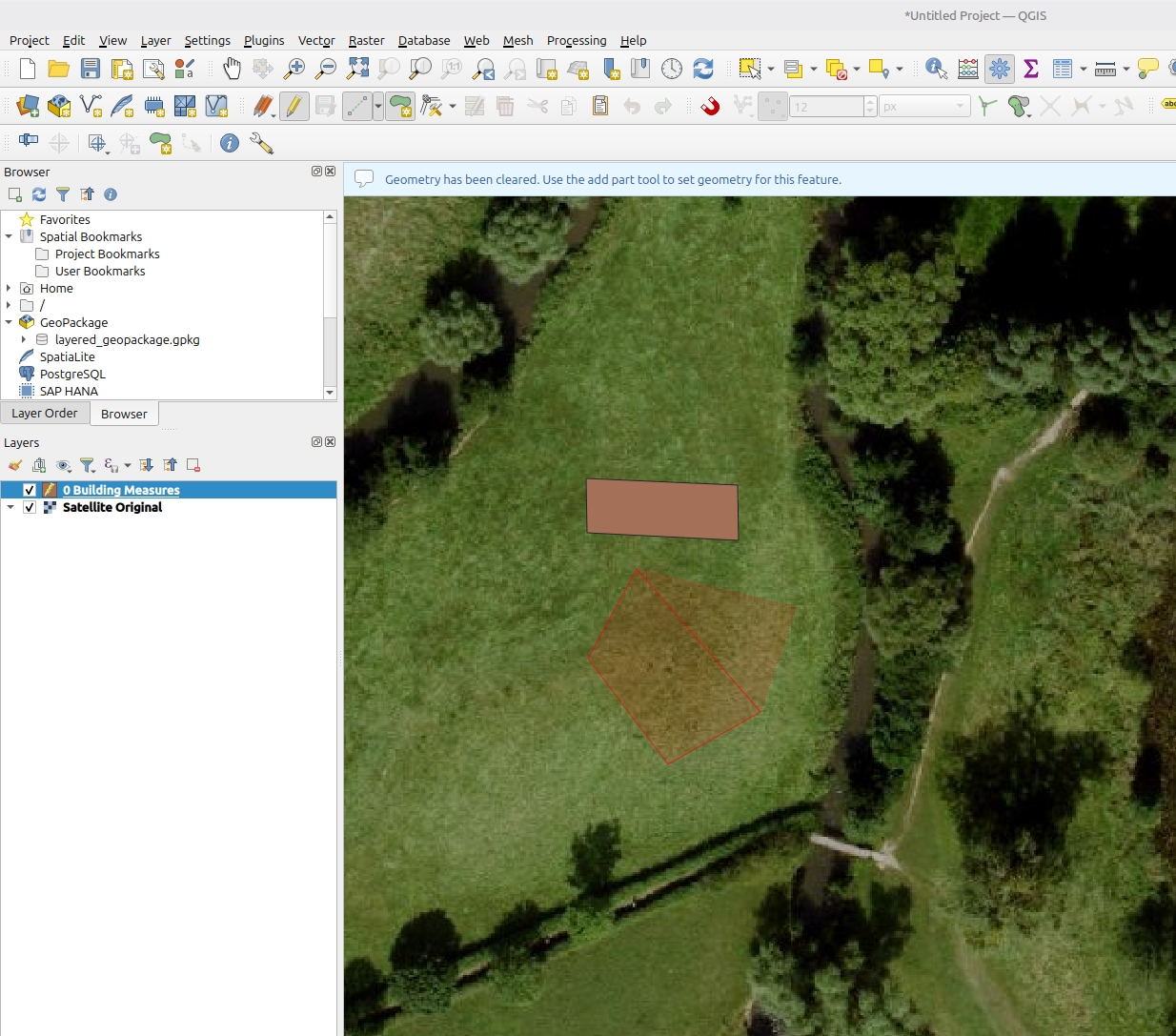 Drawing a new Measure building next to an existing one, with Satellite Original WMS as background.
 -
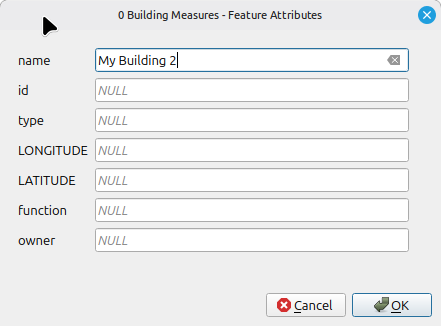 Providing a name for the added Measure Building.
 -
 Click on the save button to store the changes made to the layer.


