How to export AI Training Data: Difference between revisions
Jump to navigation
Jump to search
No edit summary |
No edit summary |
||
| Line 19: | Line 19: | ||
}} | }} | ||
<gallery> | |||
File:export_ai_training_data_export_config.png|Configuration of the Export AI Training Data as PNG's for Foliage [[Areas]] on a [[Satellite Overlay]], with an intersecting area. | |||
</gallery> | |||
{{article end | {{article end | ||
Revision as of 11:57, 14 October 2025
This how-to explains how to generate an AI Training Data using the Tygron Platform. This data can be used to train your own AI model.
How to export AI Training Data:
- Open a project in editor mode using the Tygron Client Application
- Optionally add a Satellite Overlay. This overlay will be used to export train images for the dataset.
- Determine what [item] type will be used to export a dataset for. For example Foliage areas drawn on top of the satellite overlay.
- Select the Export Geo Data option in the Ribbon bar popup of the selected item type. For example: Hover over Areas and select Export Geo Data
- Under Format, select the option AI Training Data PNG
- Filter items with an attribute, such as FOLIAGE
- Optionally select a prepared Intersection Area, for example a TRAIN_LIMIT_AREA.
- For the Overlay, select the preferred Overlay, for example the Satellite Overlay.
- The image size can increased, as long as the amount of expected features within the image does not exceed the maximum amount of 250.
- The stride can be kept at 50%
- Click on the Export Files button
- Select a suitable folder for the generated dataset.
- Wait until the dataset is fully generated.
-
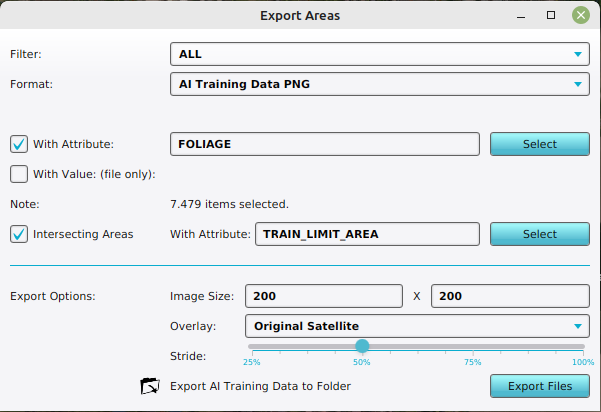 Configuration of the Export AI Training Data as PNG's for Foliage Areas on a Satellite Overlay, with an intersecting area.
