How to export AI Training Data
This how-to explains how to generate an AI Training Data using the Tygron Platform. This data can be used to train your own AI model.
How to export AI Training Data:
- Open a project in editor mode using the Tygron Client Application
- Optionally add a Satellite Overlay. This overlay will be used to export train images for the dataset.
- Determine what [item] type will be used to export a dataset for. For example Foliage areas drawn on top of the satellite overlay.
- Select the Export Geo Data option in the Ribbon bar popup of the selected item type. For example: Hover over Areas and select Export Geo Data
- Under Format, select the option AI Training Data PNG
- Filter items with an attribute, such as FOLIAGE
- Optionally select a prepared Intersection Area, for example a TRAIN_LIMIT_AREA.
- For the Overlay, select the preferred Overlay, for example the Satellite Overlay.
- The image size can increased, as long as the amount of expected features within the image does not exceed the maximum amount of 250.
- The stride can be kept at 50%
- Click on the Export Files button
- Select a suitable folder for the generated dataset.
- Wait until the dataset is fully generated.
-
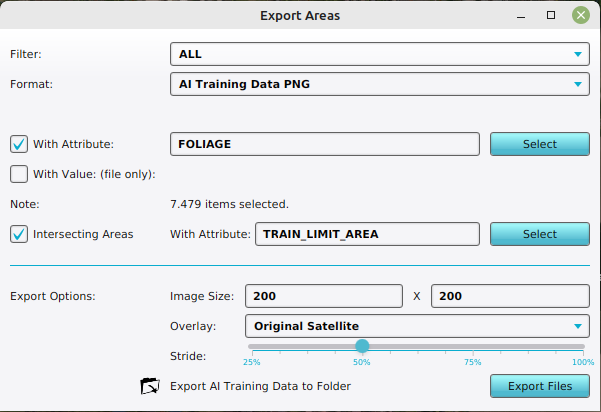 Configuration of the Export AI Training Data as PNG's for Foliage Areas on a Satellite Overlay, with an intersecting area.

Notes
- In case the export folder is not empty, a confirmation popup will appear on overriding the existing image, label, mask and bounding box files.
- In case a region intersects the limit area, but does not contain any features, it is still exported as a dataset-entry (image-, label-, mask- and bbox-file) but without labels, mask pixels or bounding box entries.
- In case the feature density is low, the image size can be increased.
- In case the feature sizes are small compared to the image size, the stride can be increased.
- A dataset can also be generated as AI Training Data CSV, which allows users to directly train on float matrices instead of color images.
- When the intended background image is not the satellite image provided by default but some other image or set of data, it is also possible to select a WMS Overlay referencing an external map service, or a Combo Overlay, the
COLORfunction of which can be used to compute a custom image with.