Viewer: Difference between revisions
Jump to navigation
Jump to search
No edit summary |
|||
| Line 1: | Line 1: | ||
The main user interface allows end users to interact with the [[3D Visualization]], from the perspective of a [[stakeholder]]. It is rendered on top of the 3D Visualization and displays panels to inspect the [[Current]] and [[Planned]] situation of a [[project]]. It also contains panels that allow [[stakeholder]]s to plan [[action]]s that will change the [[Planned situation]]. | The main user interface allows end users to interact with the project [[session]] and [[3D Visualization]], from the perspective of a [[stakeholder]]. It is rendered on top of the [[3D Visualization]] and displays panels to inspect the [[Current]] and [[Planned]] situation of a [[project]]. It also contains panels that allow [[stakeholder]]s to plan [[action]]s that will change the [[Planned situation]]. | ||
To change the current situation of a project, users will have to user the [[Editor]]. The editor panels are added around the main interface, as shown in the image below. | To change the current situation of a project, users will have to user the [[Editor]]. The editor panels are added around the main interface, as shown in the image below. | ||
Revision as of 13:27, 8 February 2023
The main user interface allows end users to interact with the project session and 3D Visualization, from the perspective of a stakeholder. It is rendered on top of the 3D Visualization and displays panels to inspect the Current and Planned situation of a project. It also contains panels that allow stakeholders to plan actions that will change the Planned situation.
To change the current situation of a project, users will have to user the Editor. The editor panels are added around the main interface, as shown in the image below.
-
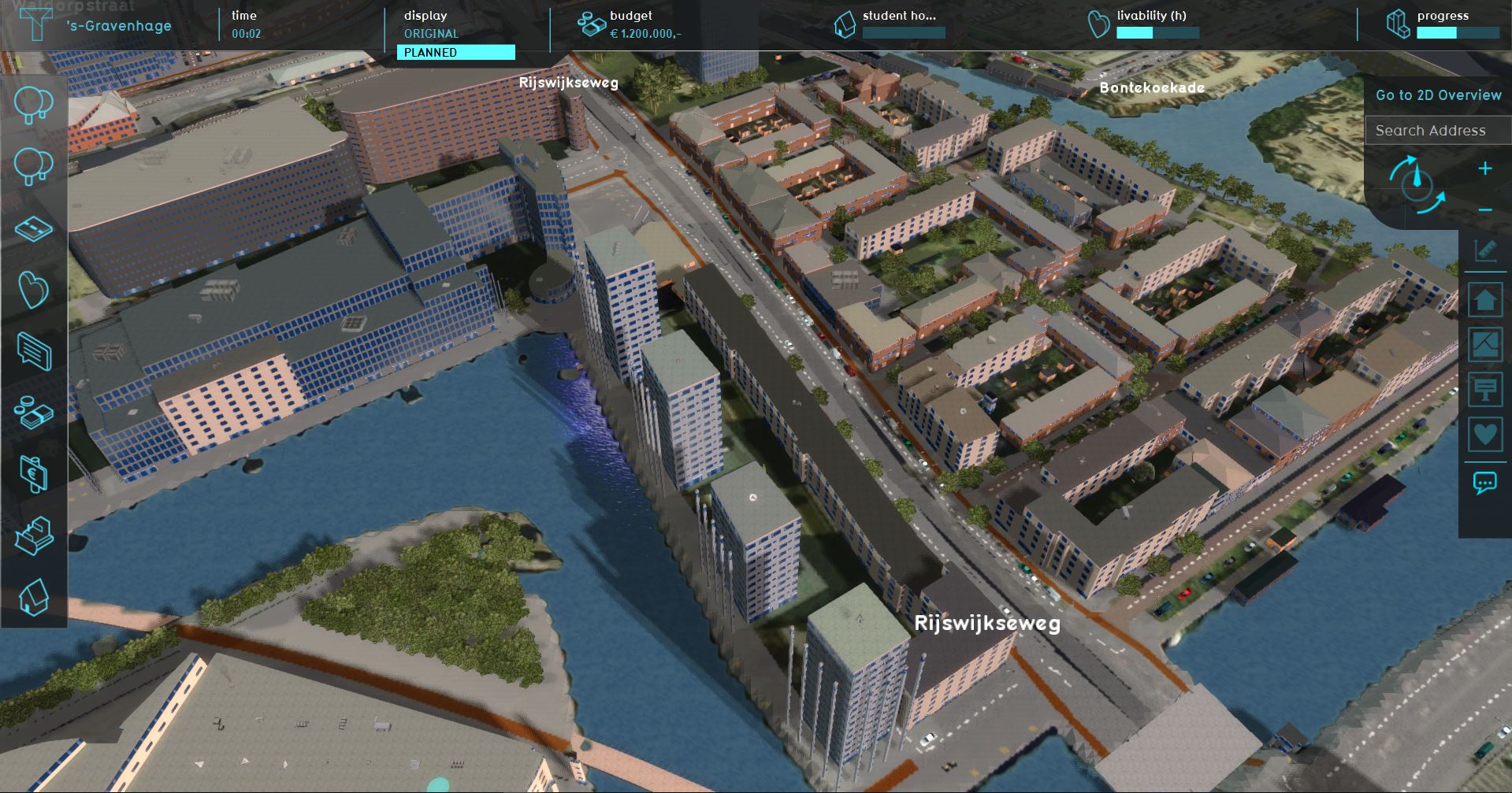 User Interface
 -
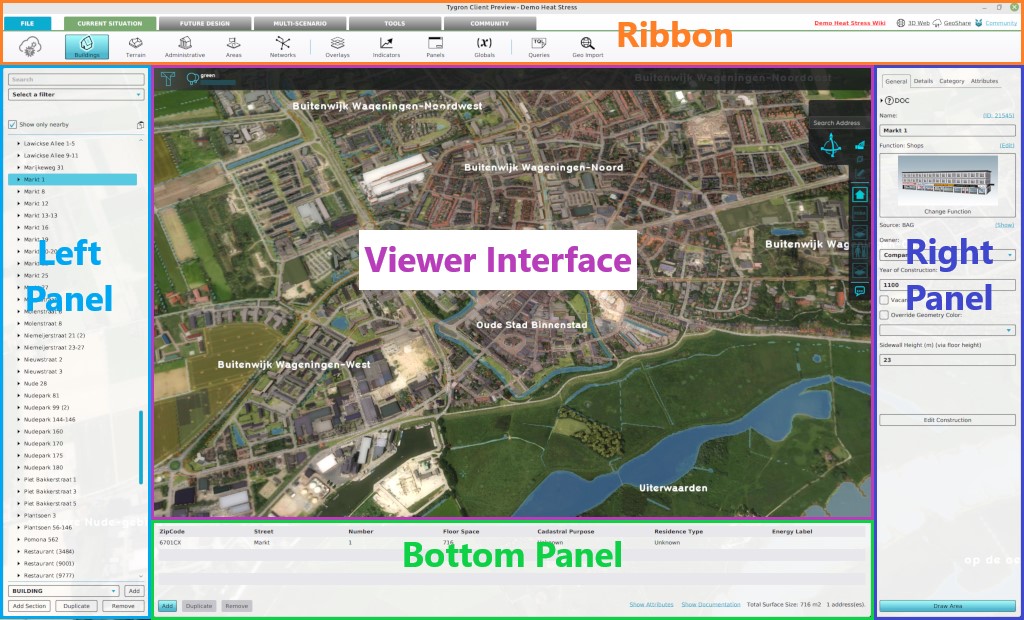 Editor Interface

Main interface elements

The Main Interface consists of the following main elements:
- Top bar: Top part of the screen; Displays Indicators and buttons to switch between the Current and Planned situation.
- Action menu panel: Left part of the screen; Displays the Action Menus containing the Actions available to the selected Stakeholder.
- Navigation panel: Right part of the screen; Displays multiple things:
- a search bar for addresses and buildings
- the selected Camera and it's controls;
- a transparency view option,
- the Measuring tool button;
- the available overlays (sometimes grouped together);
- the Action Log;
- Legend panel: Bottom part of the screen; Displays a legend of the selected Overlay or for Drawing.
These elements can in open and show other panels in the User Interface.